How to Build a Custom AI Chatbot for Your Website (2026)
Step-by-step guide to building a custom AI chatbot for your website in 2026. Compare no-code builders (Chatling, SiteGPT, Tidio) vs custom dev, train on your co
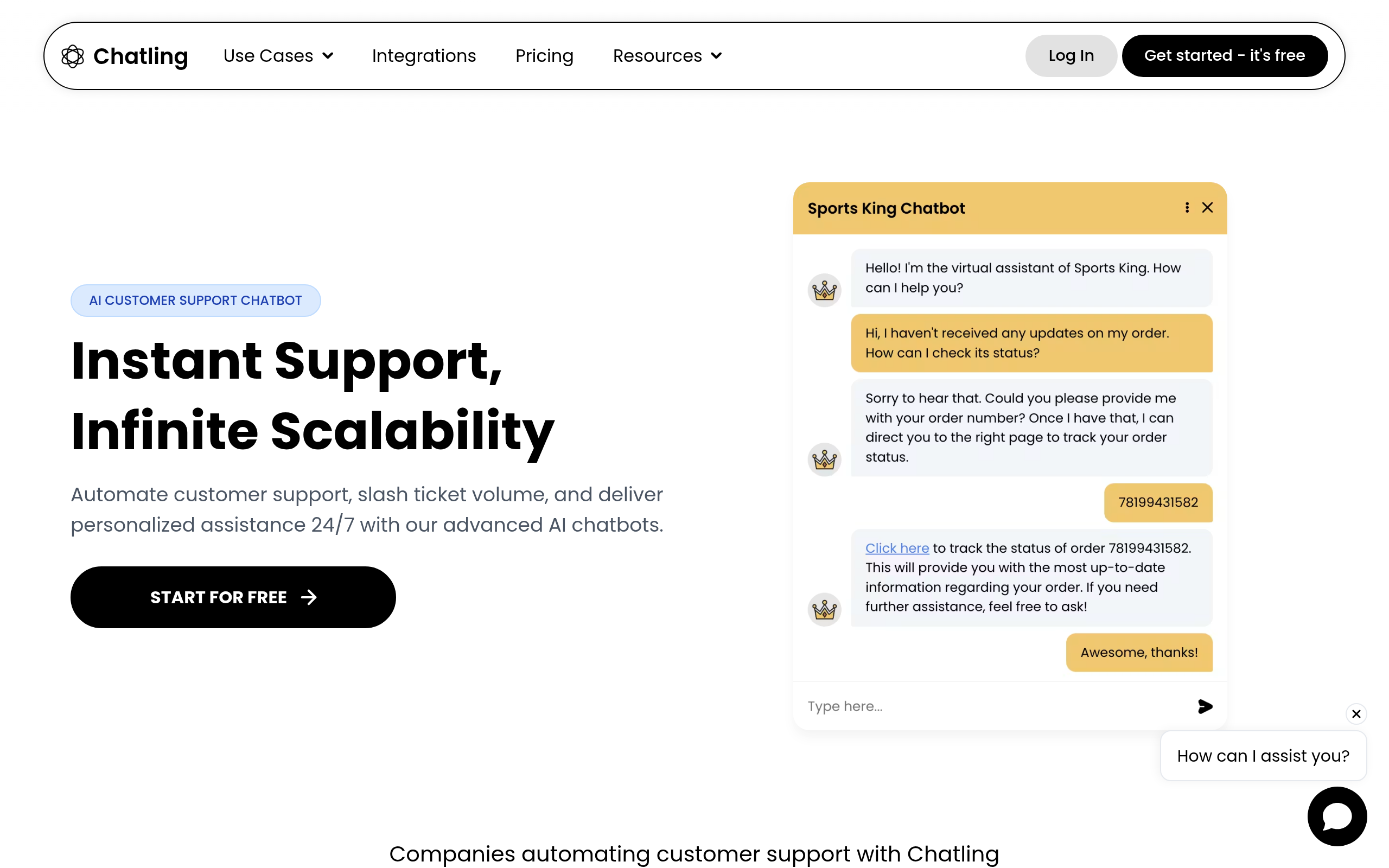
- No-code is right for 90% of websites — tools like Chatling, SiteGPT, and Wonderchat train on your content and embed in under an hour, no developers needed.
- RAG (Retrieval-Augmented Generation) is the key technology to look for — the chatbot searches your site content to answer, not generic internet knowledge, which dramatically reduces wrong answers.
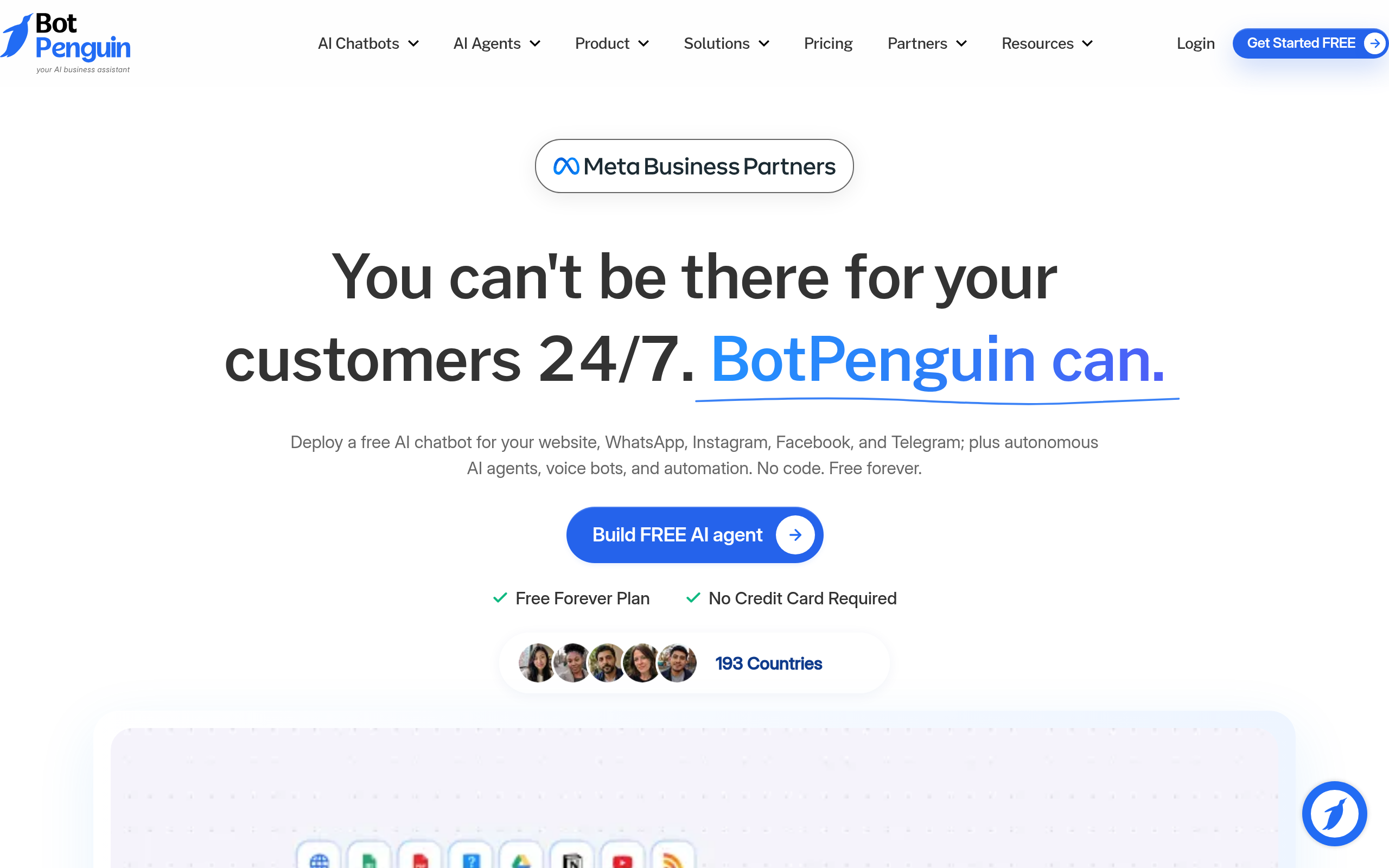
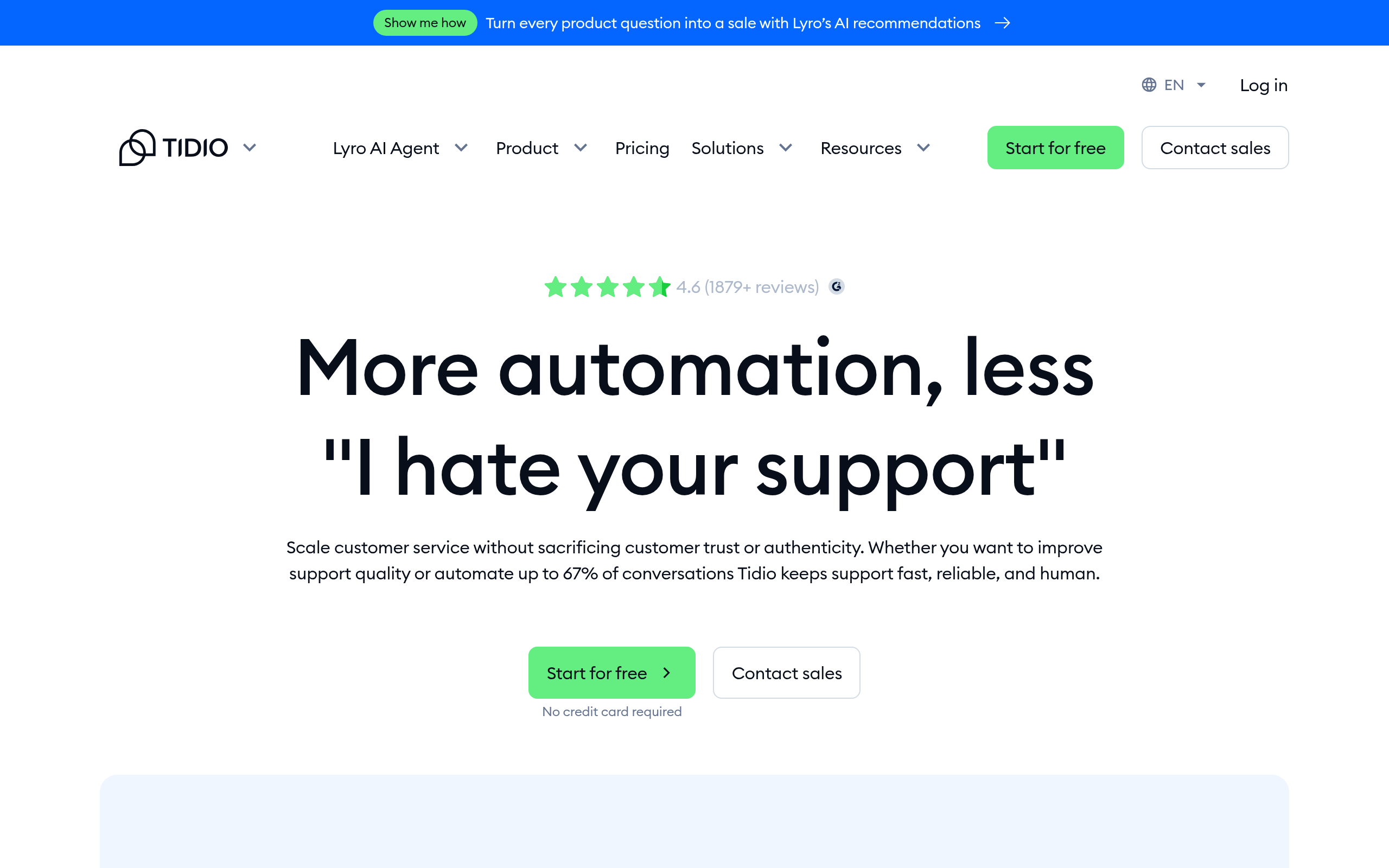
- E-commerce teams get the most from Tidio (live chat + AI hybrid, native Shopify integration); BotPenguin if you also need WhatsApp.
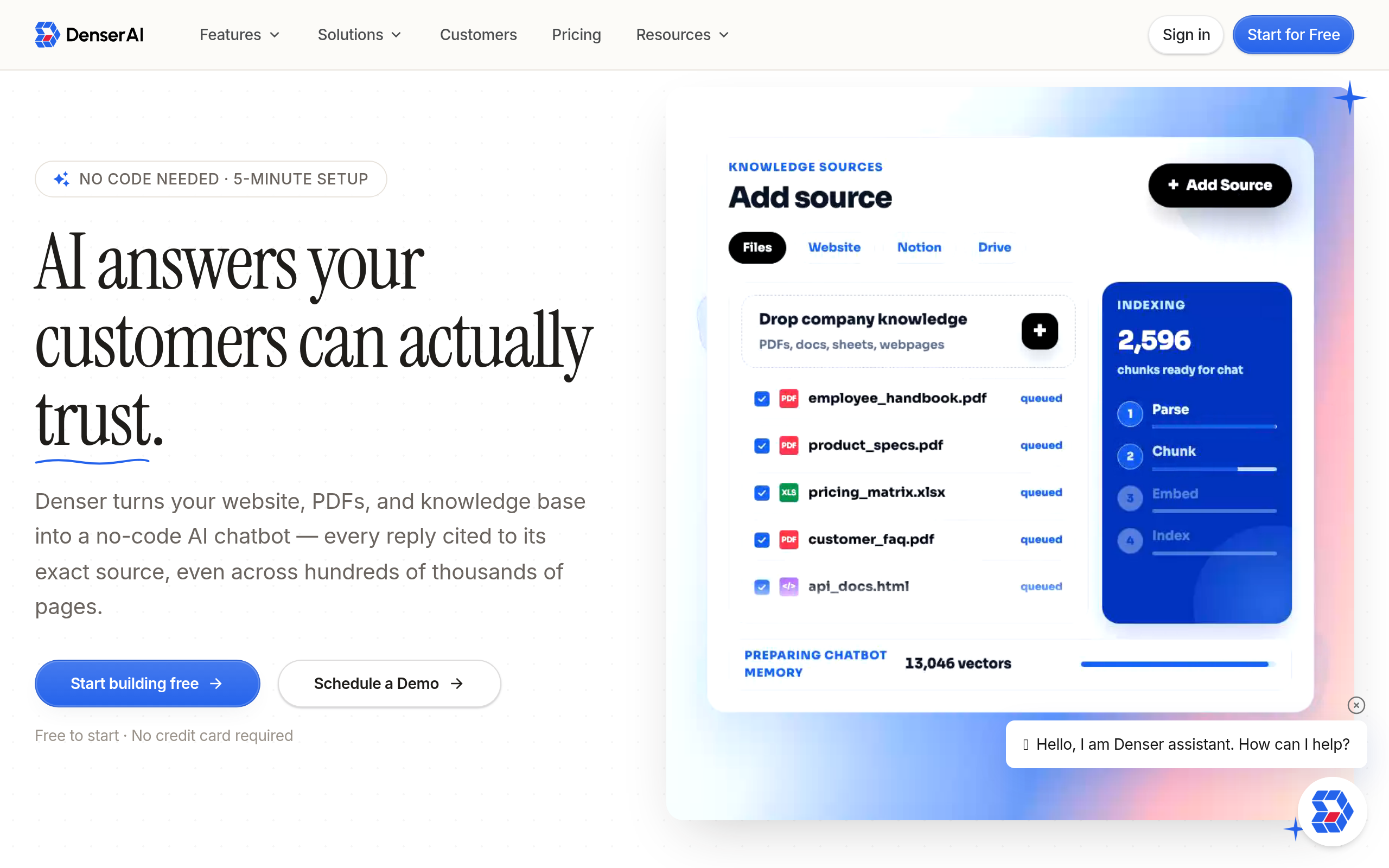
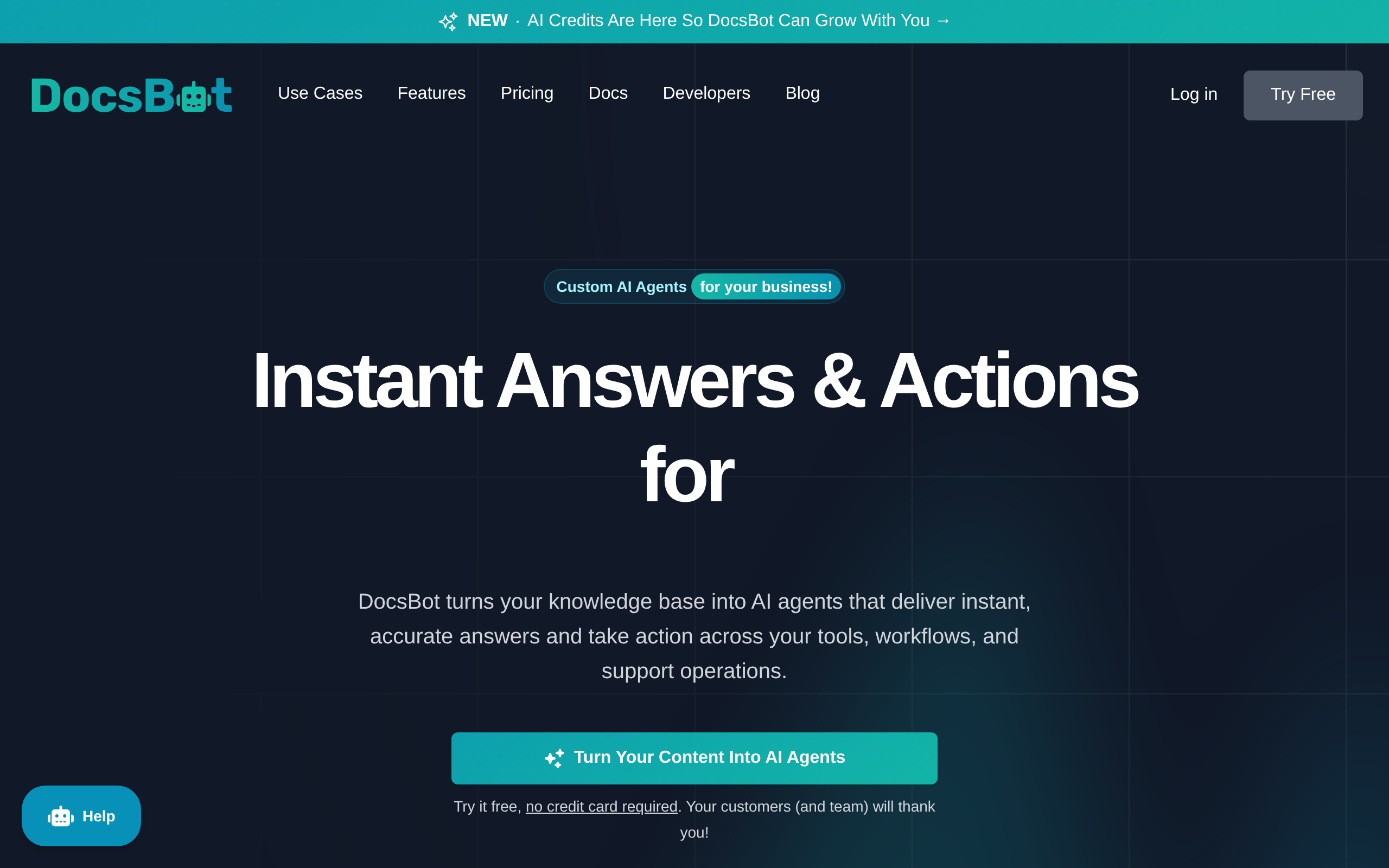
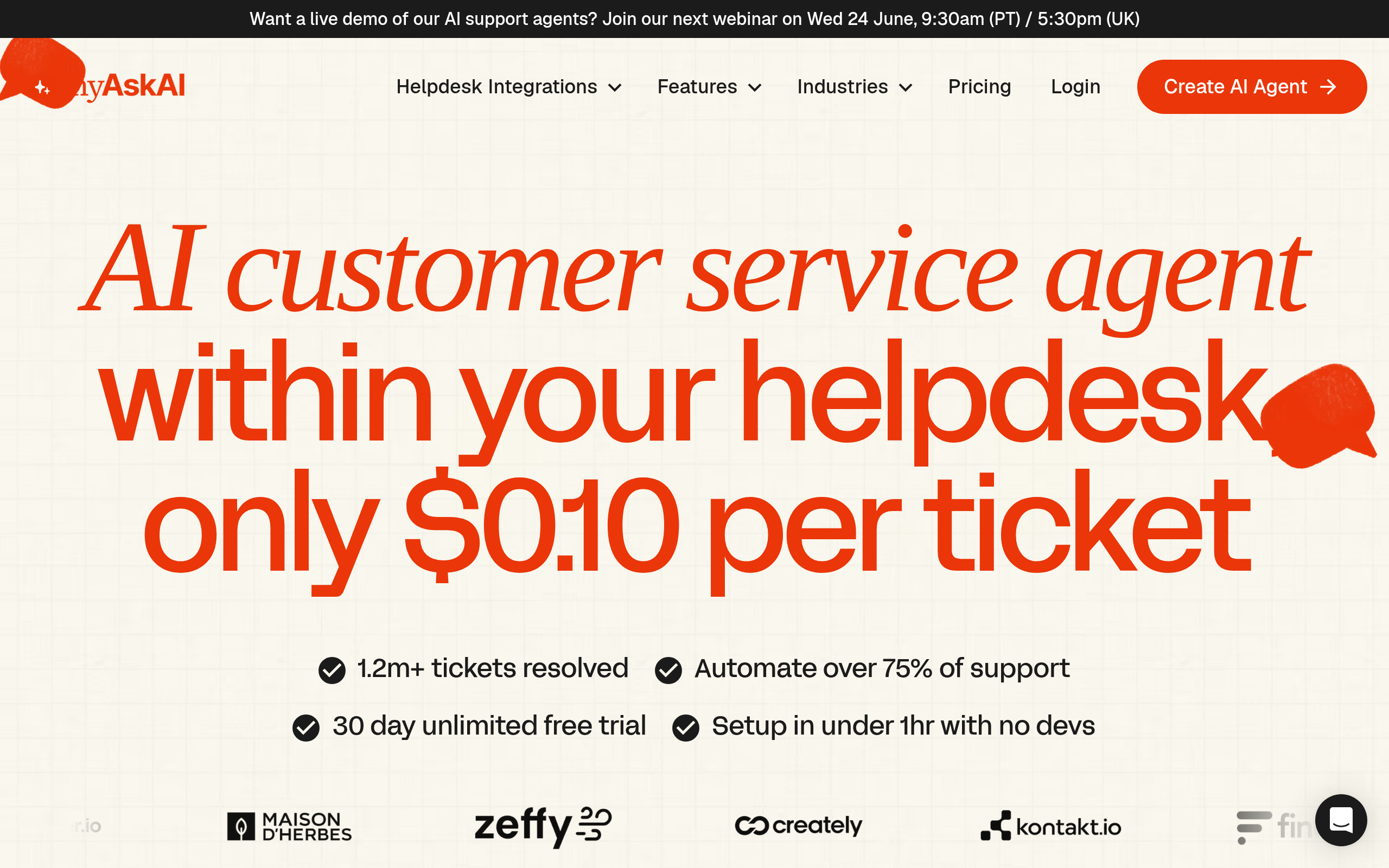
- SaaS products and docs sites are best served by DocsBot, My AskAI, or Denser.ai depending on complexity.
- Embedding is a single script tag — copy it from the dashboard, paste before
</body>, done. - After launch, the unanswered questions log is your most valuable feature — review it weekly to find content gaps.
Adding an AI chatbot to your website in 2026 is no longer a six-month engineering project. The hard part used to be building the language model. Today the models exist — the real challenge is connecting them to your specific content and deploying something that genuinely helps visitors instead of embarrassing you with wrong answers. This guide walks through the entire process: defining your goal, picking a tool, training it on your content, embedding it, and monitoring after launch.
What Does "Custom AI Chatbot" Actually Mean in 2026?
A "custom" chatbot in this context means one trained on your business content — your product pages, help documentation, FAQs, and pricing. It does not mean training a language model from scratch (that costs millions of dollars and months of compute). What you're actually doing is called RAG — Retrieval-Augmented Generation.
RAG works like this: your website content is split into chunks and converted into vector embeddings stored in a database. When a visitor asks a question, the system searches that database for the most relevant chunks and passes them to a large language model (GPT-4, Claude, or similar) as context. The LLM then answers using your content — not random internet knowledge. The result is a chatbot that stays on-topic, references your actual documentation, and says "I don't know" rather than inventing an answer.
This is the core technology powering nearly every serious no-code chatbot builder today. Understanding it helps you evaluate tools: the key question is always "how does this tool ingest, chunk, and search my content?" Better chunking and retrieval accuracy means better answers — not a more powerful LLM, which all the top tools share.
No-Code Builder vs. Custom Development — Which Should You Choose?
Most websites should use a no-code builder. The exceptions are narrow:
- You need the chatbot to trigger actions in internal systems — book appointments in a custom CRM, pull live inventory from a proprietary database, write back to your own tables
- You have strict data-residency requirements and cannot send content to a third-party API
- Your conversation flow is genuinely complex — multi-step onboarding, conditional logic based on live user account state, real-time pricing lookups
For everything else — answering support questions, explaining your product, qualifying leads, handling FAQ — a no-code tool built on RAG will outperform a hand-rolled alternative in time-to-launch, maintenance burden, and often answer quality, because specialized vendors have refined their retrieval pipelines over millions of real conversations.
| Approach | Time to launch | Cost structure | Maintenance | Best for |
|---|---|---|---|---|
| No-code RAG builder | 30 min – 2 hrs | Monthly SaaS subscription | Minimal — re-sync when content changes | Most websites, SaaS products, e-commerce, documentation |
| API-first / low-code | 1–3 weeks | LLM API token costs + dev time | You manage prompts, chunking, retrieval logic | Teams with developers who need fine-grained control |
| Fully custom build | 2–6 months | High upfront engineering + ongoing infra | Full ownership of every component | Enterprise, regulated industries, deeply proprietary data flows |
How Do You Train an AI Chatbot on Your Own Content?
This is where no-code builders deliver their biggest value. The ingestion process across most tools follows the same pattern:
- Connect your content source. Most builders — including Chatling, SiteGPT, and Wonderchat — accept a root domain URL and crawl all linked pages automatically. You can also upload PDFs, Word documents, CSV files, or paste raw text. DocsBot connects directly to Notion; My AskAI syncs with your existing help center.
- Chunking and embedding (automatic). The tool splits your content into overlapping chunks, converts them to vector embeddings, and indexes them. You don't configure this — but the quality varies significantly between tools, which is why testing real queries matters more than reading feature lists.
- Set your system prompt and persona. Tell the chatbot its role in plain language: "You are a helpful assistant for Acme Co. Answer only questions about our products and pricing. If you cannot find the answer, say so and suggest contacting support at support@acme.com." Good tools expose this as a simple text field.
- Test with real questions. Run 20–30 queries that actual users ask, including edge cases, negations ("does it work with X?"), and questions you know are outside scope. Check whether it hallucinates, stays on-topic, and handles gaps gracefully.
- Set up auto-sync. Your content changes. Most tools offer daily or weekly re-crawl — enable it so the chatbot doesn't give outdated answers after you update a pricing page.
Denser.ai and DocsBot surface which source chunks the chatbot cited for each answer — invaluable for spotting where documentation is thin or contradictory. My AskAI adds a human escalation path: when the AI lacks confidence, it hands off to your support inbox with the full conversation context.
How to Build a Custom AI Chatbot — Step by Step
Here is a repeatable process that works regardless of which tool you pick.
Step 1 — Define one primary job
A chatbot that "does everything" usually does nothing well. Pick one primary function: support deflection (answer FAQs before they hit your inbox), lead qualification (ask discovery questions, collect contact details), product discovery (help users find the right plan or feature), or documentation search. This choice determines tool selection and how you measure success.
Step 2 — Audit your content before ingestion
Your chatbot is only as good as the content it ingests. Before adding the widget, ensure your help articles, product pages, and FAQs are accurate, complete, and consistent. Thin or contradictory content produces bad chatbot answers even with the best tool. Fix the content first — it improves both the chatbot and your SEO simultaneously.
Step 3 — Pick a tool, ingest your content, test answers
See the comparison table below. After ingestion, test aggressively. The most common failure mode is confident wrong answers on topics that aren't covered in your content — ensure the tool's fallback behavior is to admit it doesn't know rather than guess.
Step 4 — Customize appearance and behavior
Match colors, fonts, and widget position to your site. Write an opening message that sets expectations clearly ("Hi, I can answer questions about our plans and features — or connect you to the team for anything else."). Configure which pages the widget appears on. A support bot doesn't need to appear on a checkout page where it could create distraction.
Step 5 — Embed the widget on your site
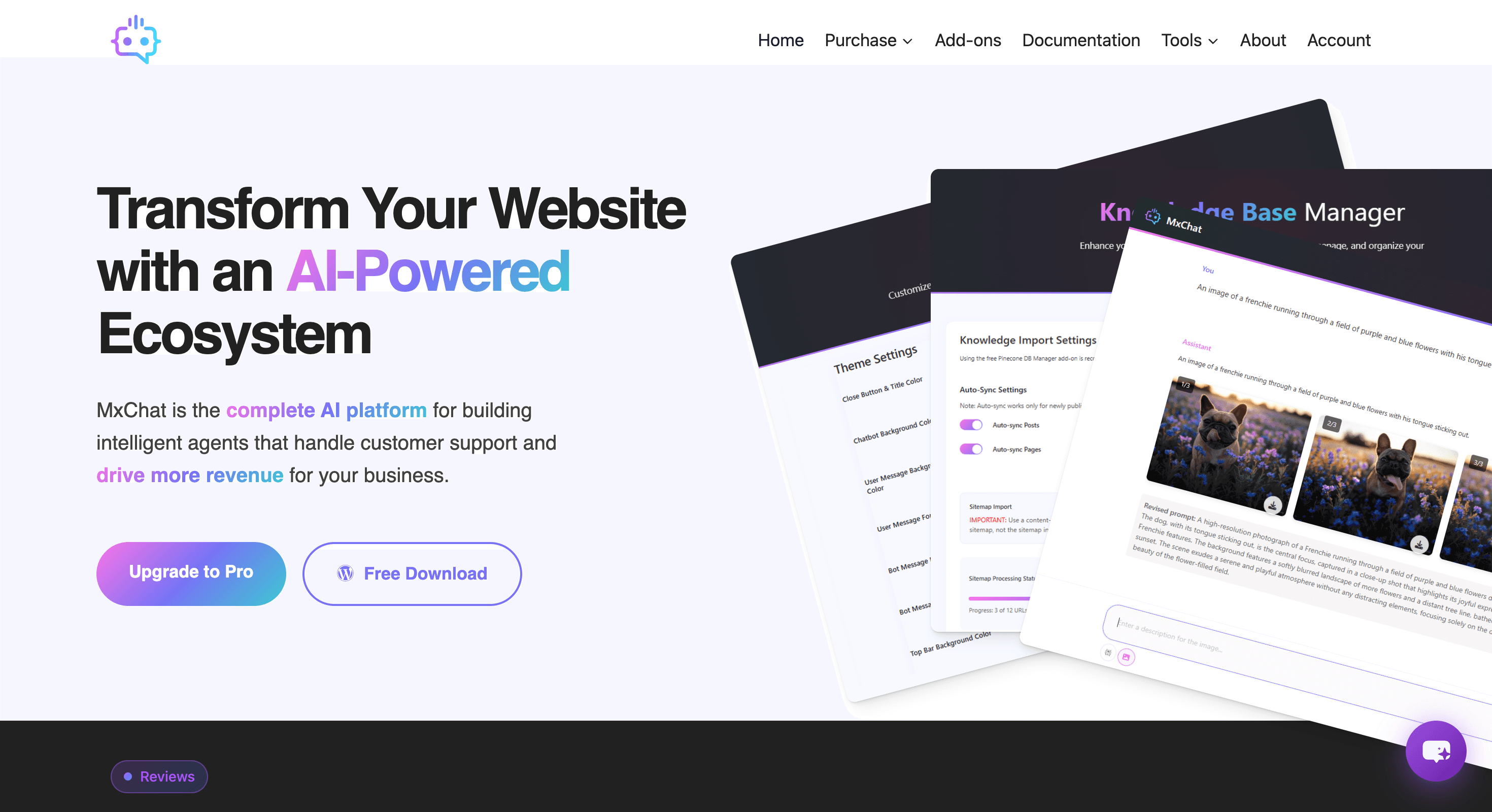
Every no-code tool generates a one-line script tag. Copy it from the dashboard and paste it before </body> on your site, ideally via a tag manager so you can toggle it without a code deployment. For WordPress, plugins like MxChat handle this directly in the WP admin panel — no snippet needed. For React or Next.js apps, most providers offer an npm package.
Step 6 — Monitor, review, and improve
Every serious no-code tool logs conversations and flags unanswered or low-confidence questions. Review these weekly for the first month. Each unanswered question maps to a content gap — add that content to your site, and the chatbot picks it up on the next sync.
Which No-Code Chatbot Builder Should You Use in 2026?
Here is a direct comparison across the tools most relevant for website owners. Pricing changes frequently — treat tiers as indicative and verify on each vendor's pricing page before committing.
| Tool | Best for | RAG / content training | Live chat handoff | Free tier | Standout capability |
|---|---|---|---|---|---|
| Chatling | SaaS products, agencies | Yes — URL + file upload | No | Yes | Fast setup, clean conversation analytics |
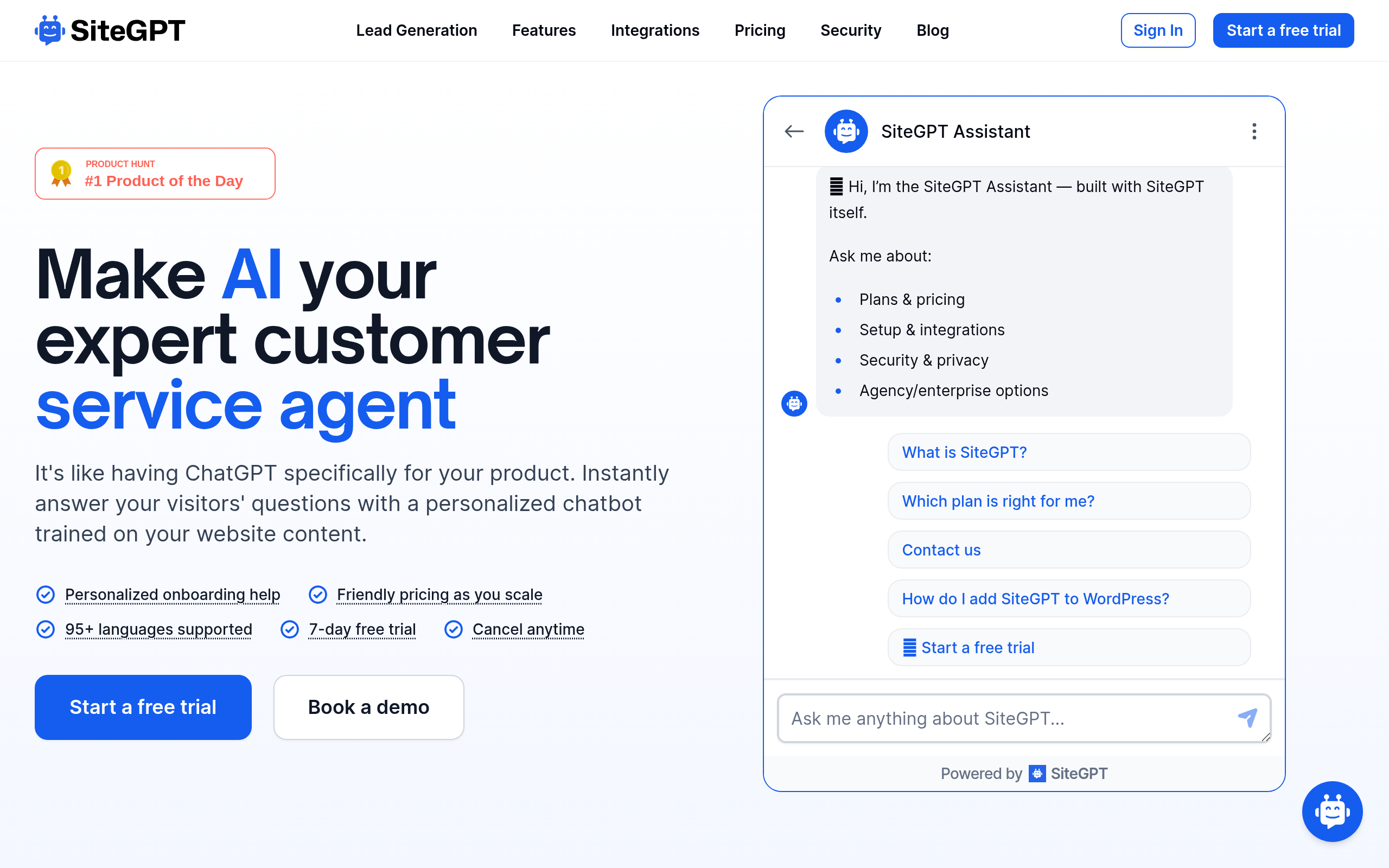
| SiteGPT | Content-heavy sites, multilingual | Yes — automatic site crawl | No | Yes (limited) | Auto re-sync, strong multilingual support |
| Wonderchat | Small businesses, blogs | Yes — URL or PDF | No | Yes | Simplest possible setup, live in under 5 minutes |
| My AskAI | Customer support teams | Yes — docs, URLs, help centers | Yes — Intercom, Zendesk | Yes | Best human escalation and support integrations |
| Tidio | E-commerce, Shopify | Yes — via Lyro AI | Yes — native live chat | Yes | Live chat + AI hybrid, Shopify-native |
| DocsBot | Developer tools, documentation | Yes — Notion, PDFs, URLs, sitemaps | No | Yes | Source citations per answer, public API |
| Denser.ai | Enterprise, complex documents | Yes — precision multi-format RAG | No | No | Highest retrieval accuracy on large document corpora |
| BotPenguin | Multi-channel automation | Yes | Yes | Yes | Website + WhatsApp + Facebook Messenger unified |
| Landbot | Lead gen, structured flows | Partial — AI within visual flows | Yes | Yes (limited) | Visual flow builder, form-like guided UX |
Which tool has the best RAG accuracy for documentation sites?
DocsBot and Denser.ai lead for documentation-heavy use cases. DocsBot surfaces the exact source chunks it cited for each answer, making it trivial to identify missing or outdated docs. Denser.ai is built for large enterprise document sets where accuracy at scale matters more than setup speed. For straightforward help centers, SiteGPT's automatic site crawl with scheduled re-sync is the best balance of simplicity and accuracy.
Which chatbot builder is best for e-commerce?
Tidio is the dominant choice for e-commerce, especially Shopify stores. Its Lyro AI answers product and order questions automatically while the live chat layer ensures complex situations — disputed charges, custom orders — reach a human agent without friction. BotPenguin is the better option when you need unified coverage across website, WhatsApp, and Facebook Messenger from a single dashboard.
How Do You Embed and Deploy a Chatbot on Your Website?
Embedding is considerably simpler than most people expect going in. Every no-code platform generates an installation snippet — the actual mechanics vary only slightly by platform:
| Platform | Recommended method | Typical effort |
|---|---|---|
| Any static HTML site | Paste script tag before </body> | Under 5 minutes |
| WordPress | Purpose-built plugin (e.g. MxChat) or header/footer plugin | Under 10 minutes |
| Shopify | Theme editor → paste in theme.liquid | Under 10 minutes |
| Webflow | Custom code embed block in page settings | Under 10 minutes |
| React / Next.js | Provider npm package, or script in _document.js | 30 minutes including testing |
| Wix | Wix Velo custom element or iframe embed widget | 30–60 minutes |
The recommended pattern for any site: deploy the snippet via Google Tag Manager. This lets you toggle the chatbot without a code push, run A/B tests (show the chatbot only on high-intent pages), and update the script version without touching your codebase. Most no-code builders support this out of the box — the tag manager just loads their standard embed script.
For multi-page apps where the chatbot should appear only on specific routes, configure URL rules in the builder's dashboard rather than adding conditional logic to your code. Most platforms support URL pattern matching (e.g. show only on /docs/* or /pricing).
How Do You Monitor and Improve Your Chatbot After Launch?
A chatbot you set and forget will quietly erode user trust. The three metrics that matter most post-launch:
- Resolution rate — the percentage of conversations where the user got a useful answer without escalating to a human or abandoning the chat. A low resolution rate means either your content has significant gaps, your retrieval is imprecise, or the chatbot's scope is too broad.
- Escalation or handoff rate — how often users click "talk to a human" or submit a thumbs-down rating. A rising escalation rate after a content update is a reliable signal that new content introduced contradictions the bot can't resolve.
- Unanswered question log — the single most actionable output from any chatbot platform. Every tool tracks questions it couldn't answer confidently. Review this list weekly: it's a prioritized roadmap of content you need to add or improve. Add the content to your site; the chatbot re-syncs on the next scheduled crawl.
Plan for a 30-minute weekly review in the first four to six weeks. By month two, patterns stabilize enough that a monthly review is sufficient. The biggest mistake teams make is launching the chatbot and considering the project done — iterating on content based on chatbot feedback typically doubles resolution rate within the first quarter.
You can also find more tools for automating customer interactions in the AI Chatbots & Assistants category on Comparee, with filters for live chat integration, pricing model, and platform compatibility.
Comparee's Verdict — Which Tool Should You Actually Use?
Here is a direct recommendation by situation, not a vague "it depends":
- Small business website, fastest possible setup → Wonderchat. Paste your URL, configure the widget appearance, embed the snippet. Live in under 10 minutes with no technical skills required.
- SaaS product with a help center or documentation → SiteGPT or Chatling. Both auto-crawl your site on a schedule, handle re-sync reliably, and provide clean analytics on unanswered questions. Chatling edges ahead on UI polish; SiteGPT on multilingual support.
- Customer support team already using Intercom or Zendesk → My AskAI. Its integrations with established support platforms are the cleanest available — the AI deflects what it can, and hands the conversation thread to a human agent for everything else without the user noticing the transition.
- E-commerce / Shopify store → Tidio. The live chat plus Lyro AI combination handles the majority of pre-sales and order questions automatically, with native Shopify data access for order lookups.
- Multi-channel (website + WhatsApp + social) → BotPenguin. Broadest channel coverage among the no-code builders, all manageable from one inbox.
- Lead generation, structured qualification flows → Landbot. Its visual flow builder creates guided conversation experiences that feel like smart forms — ideal for qualification sequences, booking flows, or onboarding wizards where you need structured data collection rather than free-form Q&A.
- Developer documentation site → DocsBot. Source citations per answer and a public API make it straightforward to embed in developer portals or Notion-backed documentation.
- Enterprise with large, complex internal documents → Denser.ai. Built for precision retrieval over large, multi-format document corpora where accuracy at scale is the priority over setup speed.
Tools mentioned in this guide

Pricing, features and model availability can change over time. Always verify current details on each tool's official website before deciding.
Frequently Asked Questions
How long does it take to build an AI chatbot for a website?
How long does it take to build an AI chatbot for a website?
Can I build a website AI chatbot without any coding?
Can I build a website AI chatbot without any coding?
What is RAG and why does it matter for a website chatbot?
What is RAG and why does it matter for a website chatbot?
How do I keep the chatbot from giving wrong answers about my business?
How do I keep the chatbot from giving wrong answers about my business?
Does a website AI chatbot need ongoing maintenance?
Does a website AI chatbot need ongoing maintenance?
How much does it cost to add an AI chatbot to a website?
How much does it cost to add an AI chatbot to a website?
Can I use ChatGPT or Claude directly to build a website chatbot?
Can I use ChatGPT or Claude directly to build a website chatbot?
Which AI chatbot builder is best for a WordPress website?
Which AI chatbot builder is best for a WordPress website?
Don't just pick a tool — get the whole workflow
Tell Comparee your goal and get a complete step-by-step AI workflow with the right tool for every step.